Office 2019 Professional Plus complete installation and activation guide (Bind, ISO, Phone)


1. Office licensing via Microsoft Account association
(the simplest activation method, but also the most expensive type of license)
After purchasing this license from us, all you need to do is go to https://setup.office.com create a new Microsoft account (if you don’t already have one), or sign in with your existing account. By following the activation steps, you will be able to associate your product license key with your Microsoft account. To download the installation kit, simply follow the on screen instructions.

2. Office licensing via .ISO installation kit
(nothing could be easier! Install the kit and activate at the end)
After purchasing this type of license from us, all you need to do is install the provided kit (don’t worry, we will provide all the necessary documentation). Once the installation process is complete, simply enter the license key in the activation window that’s it, as simple as that!

3. Office licensing via .ISO installation kit, phone activation
(the cheapest type of license, slightly more difficult to activate)
After purchasing this type of license from us, all you need to do is install the kit (don’t worry, we will provide all the necessary documentation). Once the installation process is complete, enter the license key. Then follow the steps below to successfully activate the product!


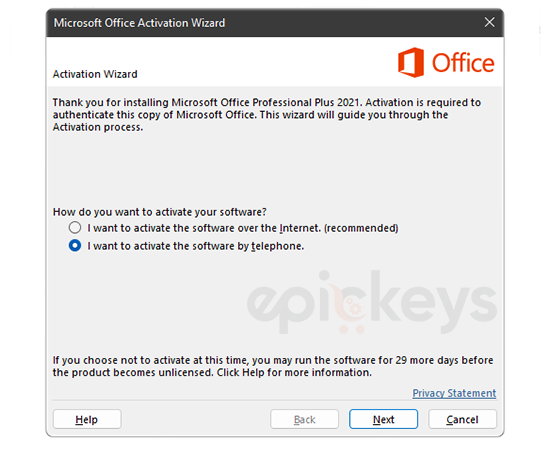
After entering the license key in the first activation window, an additional activation window will open where you need to choose Phone Activation.
(Check the option “I want to activate the software by telephone.”)
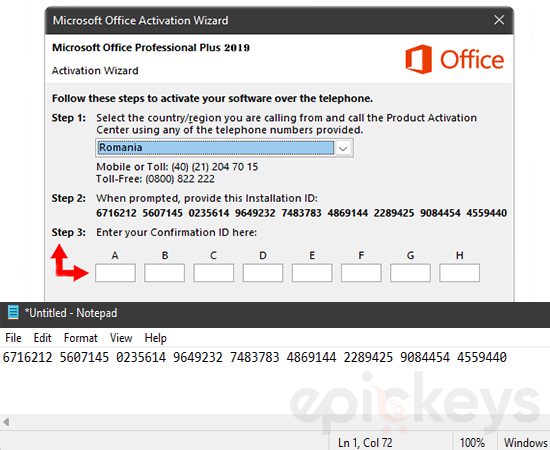
Step 1: Select Romania (e.g.) as the activation country, or any other country where you want to activate the product. Call the number displayed on the screen to receive the confirmation activation code. (The process takes about 15–20 minutes and is handled by Microsoft’s automated AI system.)
Step 2 (quick method): Enter the code consisting of 9 fields (the Installation ID) here.
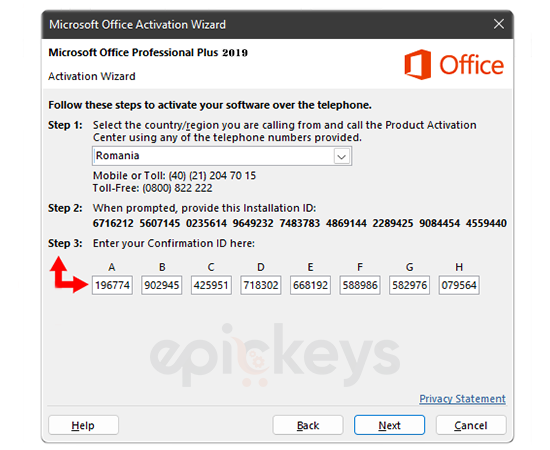
Step 3: Enter the code generated on the Microsoft website into the 9 empty fields (labeled A–H) in the installation wizard.


We recommend opening a text file (Notepad, Word, etc.) and carefully copying the numeric code from Step 2 into it.
After copying the code, highlight it with your mouse, use the Copy/Paste function, and paste it into the Installation ID (IID) field here.
Before pressing the GET button, check the I’m not a robot box, then select the version of Office you want to activate using the Select version button.
By pressing GET (after a waiting time of up to 60 seconds), a Confirmation ID for product activation will be generated. You will need to enter this code in Step 3.

You’re almost done!
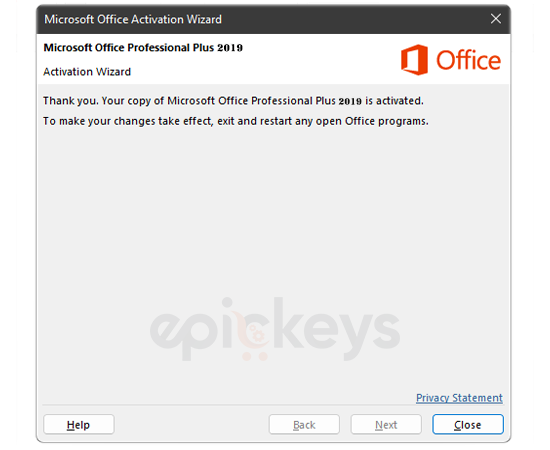
After entering all the information from the steps above, all that’s left is to press the Next button. If you followed everything correctly and carefully, within a few seconds you will receive confirmation that the product has been activated. Click the Close button to complete the activation.
When you open a Word/Excel file for the first time, a new window will appear asking you to choose the type of files you want to open with the Office suite. Select the option Office Open XML Formats. We also recommend restarting your computer after completing the installation.
To check if the product has been successfully activated, open a Word file and navigate to File → Account → Product Information.
🎉 You now have Office 2019 Professional Plus with a permanent license.